
LMS Reporting, Analytics & Communication
Know exactly who completed what: Act without leaving the report
uQualio’s reporting layer covers 10+ report types across completion, quiz scores, user activity, certificates, and knowledge gaps. Select any group of users from a report and send them an email, SMS, or in-app message from the same screen. No spreadsheet, no separate tool, no manual follow-up process.
No code · No hassle · Plans from $19.99/month

What the data tells you, and what to do about it
Most reporting tools show you the completion rate and stop there. A number on a screen doesn’t tell you which customer hasn’t finished, why they’re stuck, or what to do about it.
uQualio’s reporting connects the data to the action. You see who hasn’t completed. You click. You send them an email or SMS from the same screen. The reminder goes out. You move on.
For compliance use cases: you see who passed, when, and with what score. You export the timestamped audit trail. The documentation is done.
LMS Reporting, Analytics & Communication
If you need to know which customers are ready before you invoice
The Test Completed Status report shows every invited customer, their completion status, their quiz score, and the timestamp of completion. Export to Excel, share with your CS team, or use it as the trigger for your billing or account activation workflow. No spreadsheet chasing. No email threads asking “did they finish?”

DORA moved from scheduling 3-hour onboarding visits to invoicing customers immediately after the sales meeting.
The Analytics: The right view for each question
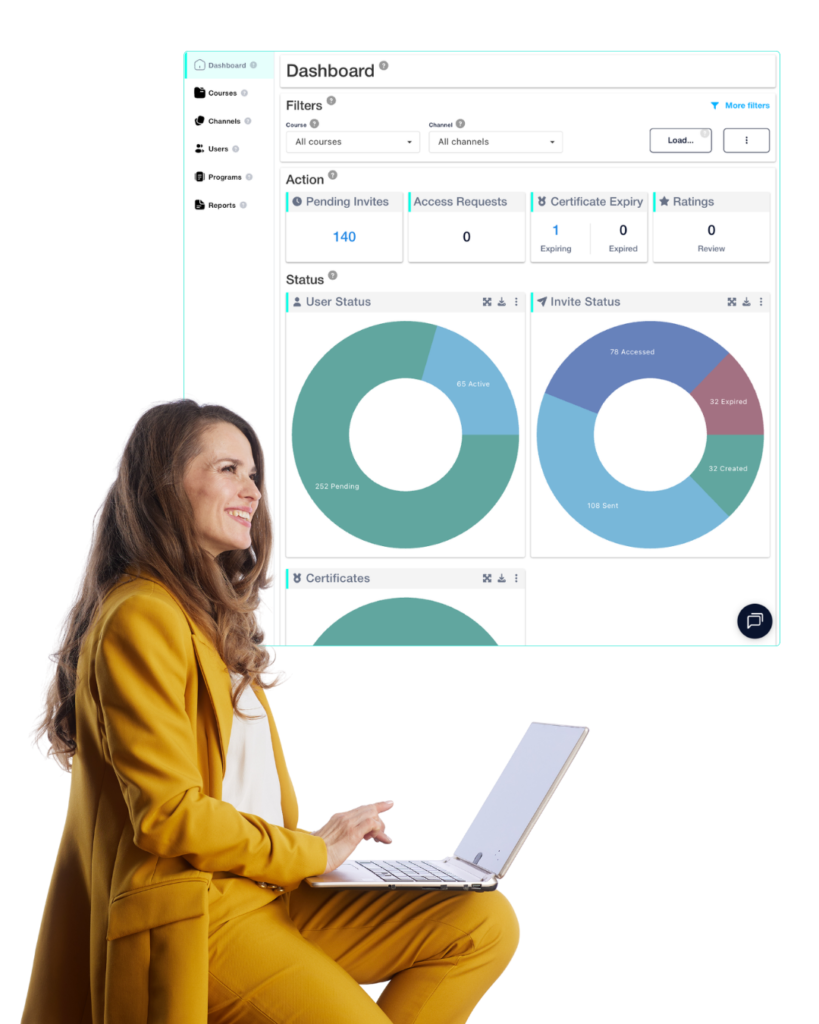
Dashboard: Whole account & platform overview
Invitations sent, active, and expired. Certificates issued. Course ratings and learner feedback. Channel-level rollup.
Use this when you want to see the health of the whole training programme at a glance.
Course Analytics: Per-course detail
Invitation status, quiz and test answers, and certificate records for one specific course, can be found on the course report.
Use this when a manager asks “how is the onboarding course performing?” or when you’re troubleshooting a specific course with high drop-off.
Report & User Status: Who's doing what across the organisation
User distribution and engagement by country, organisation, and group.
Use this for workforce-level views: which regions have completed compliance training, which departments have certified partners, which cohorts are lagging.
Eleven report types: The answer to every training question
Each report is filterable, exportable to Excel, and actionable: select any group of users from any report and message them without leaving the view.
Completion and status reports
Test Completed Status: Every invited learner, their completion status (completed / in progress / not started), their quiz score, their pass/fail result, and the timestamp of completion. This is the compliance audit report and the billing trigger report.
Test Not Completed: Everyone who was invited to the final test and hasn’t finished. Use this to identify who needs a chase, who needs more time, or which course is producing systemic non-completion.
Pending Invites: Users who have been invited but haven’t started at all. The first intervention point — has the invitation reached them? Is the link working? Are they in the right cohort?
Activity and engagement reports
All User Activity: Complete view of every module viewed, time spent per module, quizzes attempted, and progression through the course. Use this to find where learners are spending time and where they’re dropping off.
Registered User Activities: The same view, filtered to formally registered users only. Useful when your platform includes both invited (private) and anonymous (public) learners, and you need to separate the tracked populations.
User Invites: Full invitation history: who was invited, when, by which method (email, SMS, bulk import), and current status. Use this for audit trails and to resolve “I never received the invitation” support requests.
Knowledge and quiz reports
Test Questions and Scores: Question-by-question breakdown of the final test. See which questions are consistently failing. A consistent miss on a question means a topic needs improvement.
Quiz Questions and Scores: Per-module breakdown of the practice knowledge checks embedded in topics. Use this alongside Test Questions to distinguish between “they didn’t understand it the first time” and “they didn’t understand it at all.”
Quiz Answers Stats: Aggregated statistics on which answer options learners select. If 70% of learners select the same wrong answer -> signal to check question phrasing or topic explanation. Not a signal of learner quality.
User Feedback: Qualitative feedback on the course experience, collected at the end of each course. Use this for course improvement, not just performance tracking.
User distribution and engagement by country, organisation, and group: Use this for workforce-level views: which regions have completed compliance training, which departments have certified partners, which cohorts are lagging.
Certificate and achievement reports
Achievements — Every certificate and badge issued: learner name, course, date, pass score, and certificate expiry if set. Use this as the compliance record, the certification register, or the input to a renewal workflow. Export to Excel for submission to a regulator, an audit team, or a corporate compliance function.
The Analytics: The right view for each question
Eleven report types: The answer to every training question
Each report is filterable, exportable to Excel, and actionable: select any group of users from any report and message them without leaving the view.
Communicate, message, & nudge
The feature that makes the data useful: Message directly from any report
Seeing who hasn’t completed is one step. The next step used to mean switching to your email tool, building a list, and sending a separate campaign. In uQualio, it’s the same screen: Select any group of users from any report (non-completers, pending invites, a specific cohort) and send them a message via:

subject line and body text, or using a custom notification template you’ve configured

SMS
for learners who are better reached on mobile
In-app notification
shows in the learner’s platform notification feed

Combination
email and SMS simultaneously
The message goes out in seconds. The send is logged. You come back to the report the next day and see who responded.
This is the mechanism that turns a completion dashboard into a completion management tool. The data isn’t just for observation – it’s the trigger for the next action.
Completion as operational signal, not just a training metric
For L&D teams, completion rates are a programme quality metric. For services and operations teams, completion data means something more specific.
1
Customer onboarding
Course completion is the signal that the customer has been trained and is ready to use the product. The Test Completed Status report with the timestamp is the paper trail. Some uQualio customers use this event directly as the billing trigger: Certificate issued, invoice sent.
2
Partner certification
Course completion with a pass score above the threshold means the partner is certified to sell or support the product. The Achievements report is the certification register. When a certificate lapses, because you set an expiry date, you can send out re-certification if relevant.
3
Compliance documentation
A regulator or an internal audit team asks: “Who completed the GDPR training, when, and did they pass?” The Test Completed Status export answers that question with a timestamped record of every learner, every completion date, and every score.
Saved searches and user assignment
Filters you save. Actions you take.

Saved Searches
Configure a filter set once (for example: “all learners in the DACH channel who haven’t completed the product certification in the last 90 days”) and save it with a name. Open it the next day and the results update dynamically. No rebuilding the same filter every time.

User Assignment
From any report, select a group of users and assign them directly to a group, list, or channel. Use this to move cohorts, add learners to a new training track, or update the learner population for a channel without leaving the reporting view.
Feature Comparison
What changes when your training data is actually actionable
| uQualio reporting | Spreadsheet / manual tracking | |
|---|---|---|
| See who hasn't completed | ✅ "Test Not Completed" report | ❌ Manual check per learner |
| Timestamped completion record | ✅ Per learner, per attempt | ❌ Date of email reply at best |
| Message non-completers from the dashboard | ✅ Email, SMS, in-app from same screen | ❌ Switch to email tool, build list manually |
| Question-level knowledge gap analysis | ✅ Test Questions & Scores report | ❌ Not possible |
| Excel export for audit submission | ✅ All 10+ report types | ❌ Manual rebuild |
| Certificate register with expiry tracking | ✅ Achievements report | ❌ Separate spreadsheet |
| Saved searches with dynamic date ranges | ✅ Built in | ❌ Manual rebuild each time |
| Assign users to new cohorts from report view | ✅ Built in | ❌ Manual, separate step |
But don’t take our word for it
– see what our customers have to say:

Integrated eLearning Component of Cybersecurity Awareness
“Using uQualio, SecureFirst helped its customers achieve iron-clad compliance adherence 87% faster, by saving ~200-300 hours in product R&D time.”

Dion Grydell
Founder and CEO of SecureFirst


Customer Onboarding Product Training and Support
“With uQualio, you get instant value! As soon as you share video training with your customers, you instantly start saving time. It has helped us save a lot of time and resources too and enabled us to scale the way we wanted. We no longer need to visit each of our customers and meet them in-person, which has significantly improved our order-to-cash flow.”

Rikke Høyer
Cofounder & CCO of Dora Nordic ApS

Get started
The completion report you've been building manually is now built automatically.
Sign up for a 14-day free trial. Invite your first cohort. Watch the completion data appear in real time. Send a reminder to non-completers from the same screen.
Common questions about reporting in uQualio
- Can I export training completion data for compliance audits?
Yes. All 11 report types export to Excel. The Test Completed Status report provides a timestamped record of every invited learner: their completion status, quiz score, pass/fail result, and the exact date and time of completion. This is the standard format accepted for compliance audit submissions and regulatory documentation.
- Can I message learners who haven't completed training?
Yes. Select any group of non-completers from the Test Not Completed report (or Pending Invites, or any other report) and send them a message via email, SMS, in-app notification, or a combination, without leaving the dashboard. The send is logged, and completion status updates are in the same view.
- How many report types does uQualio have?
Eleven reports available:
- Test Completed Status,
- Test Not Completed,
- Pending Invites,
- All User Activity,
- Registered User Activities,
- User Invites,
- Test Questions and Scores,
- Quiz Questions and Scores,
- Quiz Answers Stats,
- User Feedback, and
- Achievements.
Each is filterable, exportable to Excel, and actionable — you can select users and message them directly from any report.
- Can I see which specific questions learners are getting wrong?
Yes. The Test Questions and Scores report shows a question-by-question breakdown of the final assessment across all learners. If a specific question is consistently failing, it shows as a pattern, which tells you the course content on that topic needs improvement, not that learners need more reminders.
- Can I use uQualio's completion data as a trigger for billing or customer activation?
Yes, in two ways.
- Manually: the Test Completed Status report shows the completion timestamp per customer. Use this as your billing signal and export it for your CS team.
- Via API: the REST API returns completion events as webhooks and your billing or CRM system can receive the event in real time and trigger the next step automatically.
- How do I track certificate expiry and re-certification across a large learner population?
The Achievements report shows every certificate issued incl. learner name, course, issue date, and expiry date.
Set expiry dates when you publish the course, and uQualio automatically expires the course, so you can design if a re-certification invitation should be sent out when the certificates lapse. The Achievements report is the live certification register.
- Can I save custom report filters so I don't rebuild them each time?
Yes. Saved Searches let you configure a filter set once and save it with a name. The results update dynamically each time you open the saved search, so a filter for “all DACH learners with incomplete certification in the last 90 days” stays current without manual rebuilding.
- Can I assign learners to new cohorts or channels directly from a report?
Yes. From any report, select a group of users and multi-assign them to a group, list, or channel without leaving the reporting view.
Use this to move a completed cohort to the next training track, or to add a new group of customers to their onboarding channel in bulk.